 BCut
BCutHow to remove silences from video without uploading it
BCut finds quiet pauses in a video on your macOS or Windows computer, suggests cuts, and lets you review them before export. Your source media stays on your machine and is never changed in place.
Download BCut and a transcription model, import your video, review the suggested silence cuts in the transcript and waveform, then export a finished MP4. Pro also exports editable timelines for Final Cut Pro and Adobe Premiere Pro.
Remove pauses in five steps
Install BCut and download a model
Get the macOS or Windows app from the download page. In Settings, download Base, Small, or Medium. Base is the default and its model download is about 142 MB.
Import your video
Drag a video into the app or use the file picker. BCut extracts audio, transcribes speech, and analyzes it locally. You can choose the spoken language or leave automatic detection on.
Set the silence sensitivity
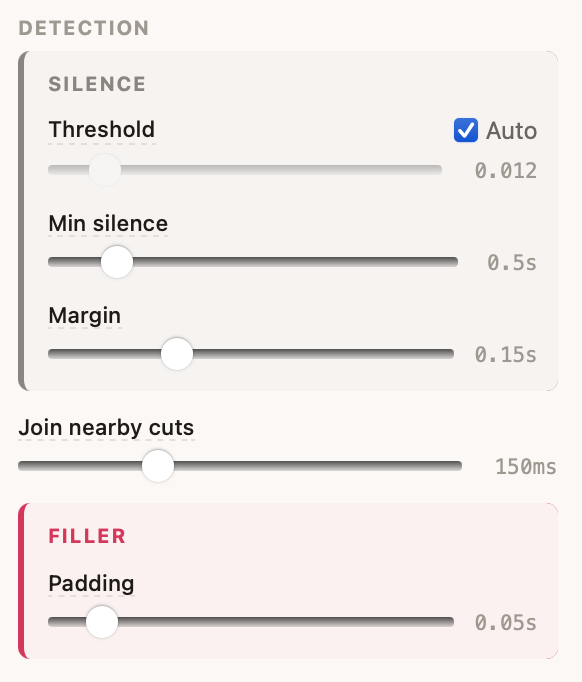
Auto Threshold chooses a level based on your recording. The default minimum silence is 0.5 seconds. In Settings, adjust the threshold, minimum silence, or margin if the suggestions cut too much or miss pauses.
Review the proposed cuts
Use the Pauses filter, transcript, video preview, and waveform to inspect each suggestion. Click a highlighted segment to keep it or cut it. BCut also suggests filler and repeated-take cuts, which you can review separately.
Export the result
Export an MP4 with your selected cuts applied. The Free plan offers watermarked 480p and 720p MP4; Pro unlocks 1080p and watermark-free MP4, plus FCPXML and Premiere XML timeline exports.
What happens to the original video?
BCut reads your file and writes a new export. The original file remains untouched. Finished MP4 export encodes the edit as H.264 video with AAC audio. FCPXML and Premiere XML preserve edit points in a timeline that references your original media, so keep those source files available for your editing app.
Silence removal: key details
| Processing | Transcription, detection, review, and export run locally; no media upload is required. |
|---|---|
| Internet access | Needed for model downloads, update checks, and activation or periodic verification of Pro licenses. |
| Default pause length | 0.5 seconds. You can change it in Settings. |
| Other suggested cuts | Filler words and repeated takes can be reviewed separately from pauses. |
| Platforms | macOS 12 or later on Apple Silicon or Intel; Windows 10 or later on x64. |
Common questions
Can I remove silences without sending my video to the cloud?
Yes. BCut processes media locally. The app may connect for model downloads, update checks, or Pro license verification, but your video is not uploaded for editing. See the privacy policy.
Will BCut automatically cut every pause perfectly?
It suggests cuts based on audio levels and speech timing. Background noise, unusually quiet speech, or intentional dramatic pauses may need a different threshold or manual review. Every proposed cut can be toggled before export.
Can I continue the edit in Final Cut Pro or Premiere Pro?
Yes, with BCut Pro. Export FCPXML for Final Cut Pro or Premiere XML for Adobe Premiere Pro. These timeline files reference your original media.