
Getting started
What BCut does
BCut analyzes video and audio on your computer, finds the parts that slow an edit down, and prepares a clean cut for export.
Import your files. Let BCut do the work. Click Export. That is the intended workflow. The defaults are designed to be reliable enough that most projects need no settings changes or manual cleanup, letting you use the result immediately and keep moving.
BCut detects silent pauses, filler words, and repeated takes. Review is always available when you want more control. Every suggested cut remains visible and reversible in the transcript and waveform, and your original source file is never changed.
From raw clip to first cut
Working specifically with pauses? Follow the step-by-step silence removal guide for detection settings, review, and export options.
Download a transcription model
Open Settings, choose Base, Small, or Medium, then click Download. Base is the default and is a good place to start.
Choose the spoken language (Optional)
Leave Video Language on Auto-detect, or select a language when you already know it. Click Save after changing settings.
Drop in your media
Drag one file into the window or click the drop area to browse. Select multiple files when you want a synced multicam project.
Review the suggestions
Play the clip, inspect the transcript and waveform, then click any highlighted segment to keep or cut it.
Export your edit
Choose a finished MP4, FCPXML for Final Cut Pro, or Premiere XML for Adobe Premiere Pro.
System requirements
| Platform | Requirement |
|---|---|
| macOS | macOS 12 Monterey or later. Apple Silicon and Intel are supported. |
| Windows | Windows 10 or later on a 64-bit system. |
| Storage | Space for the app, exported media, and at least one transcription model from 142 MB to 1.5 GB. |
| Internet | Required to download models, check updates, and activate or periodically verify a Pro license. Editing and export run locally. |
| Media length | Files up to 4 hours are supported in the app. |
Faster processors reduce transcription and export time. The Small and Medium models also benefit from more memory, especially with long recordings.
Workspace
Know your way around
The BCut window is organized around one review workflow. The video stays on the left, the transcript stays on the right, and the shared waveform runs below them.
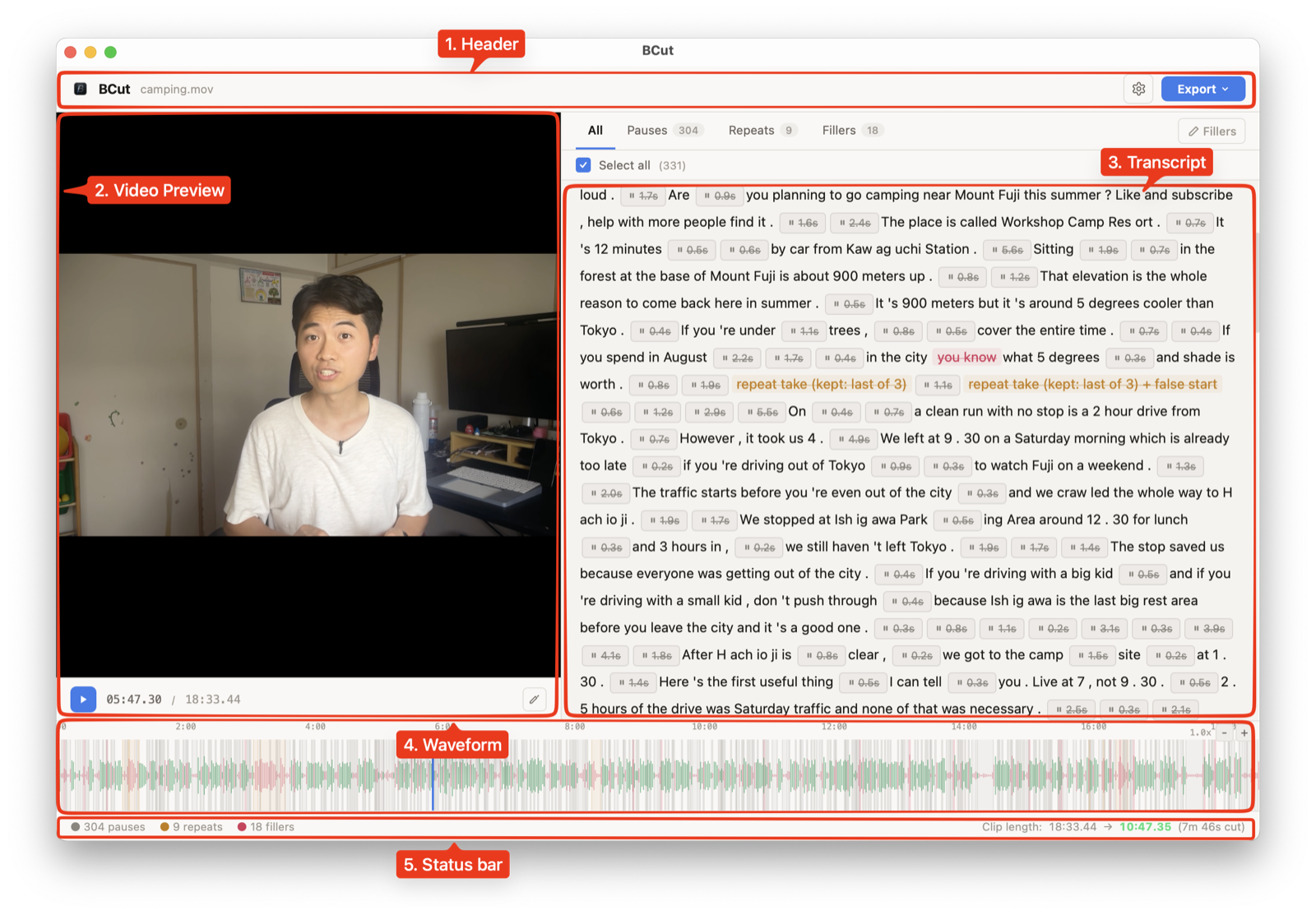
| Area | What it does |
|---|---|
| Header | Shows the current file, opens Settings, and contains the Export menu. |
| Video preview | Plays the selected camera angle. In a multicam project, it also lets you choose the visible video and transcription audio source. |
| Transcript | Displays speech and suggested cuts. Use the tabs to focus on pauses, repeats, or filler words. |
| Waveform | Shows the full recording and the position of each cut. Click or scrub to navigate. |
| Status bar | Counts selected pauses, repeats, and fillers, then compares the original and cleaned duration. |
Import media
Drag files anywhere over the empty media area, or click the area to open the file picker. When a project is already open, dropping new files asks before replacing the current work.
| Type | Supported formats |
|---|---|
| Video | MP4, MOV, MKV, WebM, AVI, and M4V |
| Audio | WAV, MP3, M4A, AAC, FLAC, and AIFF |
Selecting one file starts a standard project. Selecting two or more files starts a multicam project and syncs the clips by audio.
How suggested cuts work
BCut extracts audio, creates a transcript, and combines speech timing with audio analysis. Suggested cuts are selected by default, but they remain editable throughout review.
Silences and pauses
Quiet regions longer than the configured minimum are marked as pauses. Auto Threshold analyzes the clip and chooses a practical level. Manual threshold control is available when the recording has steady background noise or very quiet speech.
Filler words
Words such as “um,” “uh,” and language-specific equivalents are matched against the active filler list. Context-dependent words are treated more carefully so normal uses are less likely to be cut.
Repeated takes
BCut compares neighboring transcript phrases to identify false starts and repeated attempts. Review these suggestions closely when the speaker intentionally repeats a phrase for emphasis.
Joined cuts
When a filler sits very close to a silence, Join nearby cuts combines them into one clean edit. This avoids leaving tiny fragments between adjacent cuts.
Review every edit
Use playback, the transcript, and the waveform together. The currently playing transcript segment follows the playhead, and clicking text jumps playback to that point.
Filter the transcript
The All, Pauses, Repeats, and Fillers tabs let you isolate one category. Select all toggles every visible suggestion in the active category.

Keep or remove a segment
Click a highlighted pause, filler, or repeat to toggle its cut state. Selected cuts use their category color and a strike-through treatment. Click again to keep that part of the recording.
Read the result before export
The status bar shows how many cuts are selected and the estimated cleaned duration. Use this as a quick check for unexpectedly aggressive settings before exporting.

Customize filler detection
Open the Fillers panel from the transcript toolbar to inspect the list for the detected language.
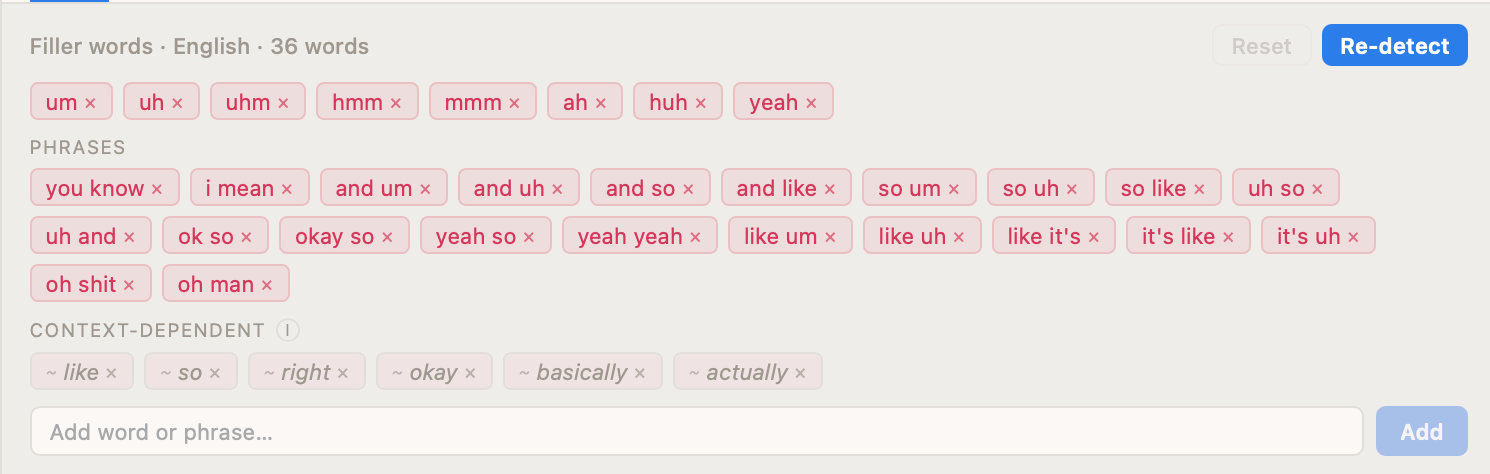
| Control | Behavior |
|---|---|
| Add | Enter one word, a phrase, or a comma-separated list. Press Enter or click Add. |
| Remove | Click the close control on a word or phrase to stop detecting it. |
| Reset | Restores the built-in list for the current language. |
| Re-detect | Runs filler detection again with the edited list without retranscribing the full clip. |
Multi-word entries are treated as phrases. Entries shown as context-dependent are only cut when their timing or transcription confidence suggests that they are fillers.
Multiple sources
Sync a multicam project
Select multiple video and audio files in a single import. BCut compares their audio waveforms, places them on a shared timeline, then runs detection on the chosen audio source.
Default sources
The first video becomes the default preview angle. If the selection contains a standalone audio file, the first audio-only clip becomes the default transcription source. Otherwise, BCut uses the primary video.
Switch video or audio
Use the selectors below the preview to change the visible video angle or the audio source. Changing the video is immediate. Changing the audio source reruns transcription and cut detection because the transcript belongs to that recording.
Weak audio matches
If the match confidence is low, BCut names the affected clips in a warning. Exported angles may be misaligned, so verify the sync in your editor. Clips need overlapping, audible content for reliable automatic sync.
Export your cut
Open Export in the header after processing completes. The menu includes finished video and editable timeline formats. Watermarking is based on your plan, not the selected video resolution: every Free video export includes a BCut watermark, while every Pro video export is watermark-free.
| Format | Availability | Use it for |
|---|---|---|
| 1080p MP4 | Pro only; no watermark | A finished Full HD video with the selected cuts applied. |
| 720p MP4 | Free and Pro; watermarked on Free only | A ready-to-share HD video or free-plan export. |
| 480p MP4 | Free and Pro; watermarked on Free only | A smaller video for quick review. |
| FCPXML | Pro | An editable Final Cut Pro timeline that references the original media. |
| Premiere XML | Pro | An editable Adobe Premiere Pro sequence using XMEML interchange. |
Timeline exports preserve cut decisions as edit points and reference the source files. Keep the original media in place until the project has been imported and relinked successfully.
Configuration
Tune detection
Open the gear button in the header. Changes are staged until you click Save. If media is already loaded, changing the language or model starts a fresh transcription.
| Setting | Default | What it controls |
|---|---|---|
| Auto Threshold | On | Analyzes the clip and chooses a silence level automatically. |
| Threshold | 0.012 | How quiet audio must be to count as silence. Lower values cut only very quiet gaps. |
| Min silence | 0.5 s | The shortest pause that BCut will suggest as a cut. |
| Silence margin | 0.15 s | Audio kept around a silence cut to protect the edges of speech. |
| Join nearby cuts | 150 ms | Combines adjacent silence and filler cuts separated by a short gap. |
| Filler padding | 0.05 s | Extra audio included around a filler word cut. |
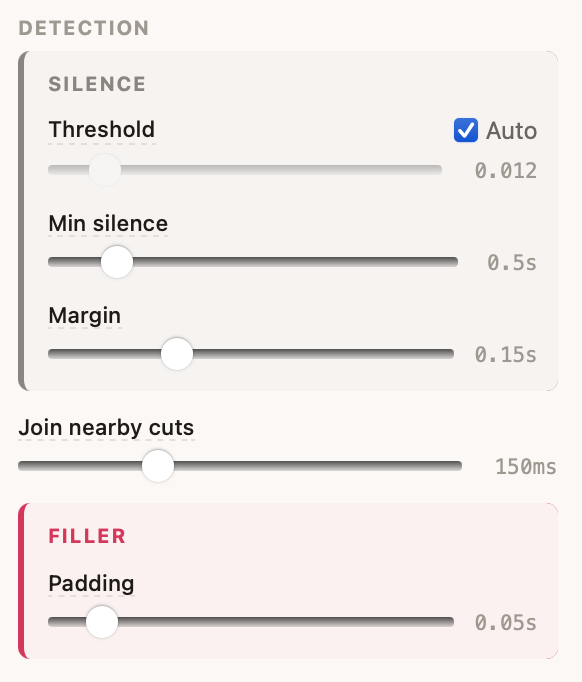
Use Reset to return detection controls and language selection to their defaults. Theme, model management, updates, license state, and telemetry permission also live in Settings.
Choose a transcription model
Models are downloaded once and stored on your computer. You can cancel an active download or delete a model you no longer need from Settings.
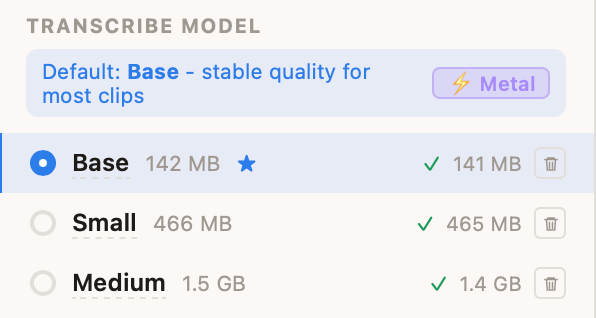
| Model | Download | Best for |
|---|---|---|
| Base | 142 MB | Fast transcription with basic accuracy. Recommended as the default for most clips. |
| Small | 466 MB | A stronger balance of speed and accuracy. |
| Medium | 1.5 GB | Higher accuracy when longer processing time and memory use are acceptable. |
Language selection
Auto-detect works well when a clip has a clear primary language. Selecting a language directly can reduce uncertainty and improve processing consistency. BCut supports 96+ transcription languages. English, Vietnamese, and Japanese include enhanced curated filler lists, and every language can use a custom list.
Plans and license activation
The Free plan includes detection, review, and 720p or 480p video exports with a BCut watermark. BCut Pro removes the watermark from every video resolution and unlocks 1080p, FCPXML, and Premiere XML exports.
Activate a key
Open Settings, choose Upgrade, and enter the license key from your purchase. A checkout link can also return directly to BCut and activate the key through the app.
Move a license
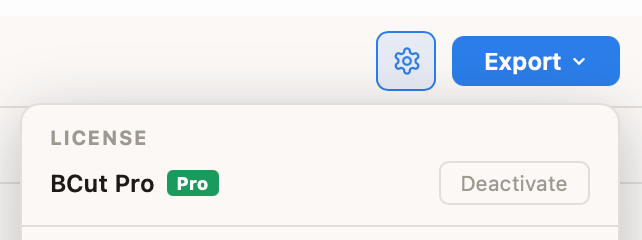
Open Settings on the current computer and choose Deactivate. You can then activate the key on another machine. BCut periodically verifies subscription licenses when internet access is available and keeps a grace period for offline work.
Your media stays local
Transcription, detection, review, and export run on your computer. BCut does not upload your video, audio, transcript, or file contents for processing.
On first launch, the app asks whether you want to send anonymous usage and crash reports through PostHog and Sentry. This is optional. If you decline, telemetry remains off. You can change the choice later in Settings.
See the full Privacy Policy for data categories, retention, and service details.
Keyboard shortcuts
Shortcuts work while focus is outside a text field, selector, or other form control.
Troubleshooting
Processing does not start
Open Settings and check the selected model. If it says Download, install it first. BCut cannot transcribe until at least one model is available.
A model download stalls or fails
Check the internet connection, cancel the download, and try again. Also confirm that the computer has enough free storage for the model and its partial download.
Too much or too little silence is selected
Keep Auto Threshold on for most recordings. For steady background noise, turn it off and adjust Threshold gradually. Increase Min silence to keep short conversational pauses.
A filler word was missed
Open the Fillers panel, add the word or phrase, then choose Re-detect. If the spoken language is wrong, change Video Language in Settings and apply it to retranscribe.
Multicam clips are misaligned
Automatic sync needs overlapping, audible content. Check whether BCut reported a weak audio match. Use recordings with shared room sound or a clear slate, then verify the result in Final Cut Pro or Premiere Pro.
The timeline cannot find the media
Timeline exports reference the original files. Do not move or rename them before import. If they moved, use the editor's relink command and select the new location.
A Pro feature is locked while offline
Reconnect briefly so BCut can verify the license. If the subscription is active and verification still fails, open Settings, deactivate, and activate the key again.
Common questions
Does BCut change my original file?
No. BCut is non-destructive. It creates a new video or timeline file and leaves the original media untouched.
Can I use BCut without an internet connection?
Yes, after a model has been downloaded. Transcription, detection, review, and export work locally. Updates, new model downloads, and license verification need occasional internet access.
Which model should I choose?
Start with Base. Move to Small when you want better accuracy and can accept a larger download. Use Medium for difficult recordings where accuracy matters more than speed.
Can I export to DaVinci Resolve?
BCut currently exports finished MP4 video, FCPXML for Final Cut Pro, and Premiere XML for Adobe Premiere Pro. Native DaVinci Resolve timeline export is not currently listed in the app.
Can I change a project after processing?
Yes. Toggle individual cuts, adjust category selections, edit the filler list, or change detection settings. Changing the language, model, or multicam audio source runs transcription again.
Visit support for installation, license, and export help.